Prompt assistance
Choose “Help me describe it” and answer a few questions about what you want to build, who it’s for and what it should do. You can skip questions or add a document or web page to give Fliplet more context for the first version.
Product updates
See what’s new in Fliplet Studio and the AI builder, from prompt assistance and phased builds to desktop notifications and security assessments.
Choose “Help me describe it” and answer a few questions about what you want to build, who it’s for and what it should do. You can skip questions or add a document or web page to give Fliplet more context for the first version.

Fliplet’s AI builder now uses GPT-6.1 Sol for the main work of creating and editing software. In Fliplet’s tests, the model lowered overall AI costs while maintaining comparable quality to GPT-6 Sol. Fliplet selects the model for each task, so there is nothing to set up.
Carry on with other work while Studio builds. Desktop notifications let you know when it finishes or needs your approval. Select a notification to return to your project. Different sounds help you tell a completed task from one that stopped early.

Review potential security issues before you publish, and see which findings need your attention first. Run an assessment from the Reports tab in Studio to see a security score and findings ranked by severity. Ask Studio’s AI to help address issues, then run another assessment; each report is saved so you can track changes over time.
Give Fliplet more context by attaching documents, spreadsheets, presentations and brand assets to your prompt. Tell Fliplet what you want to create or change, and it can use the files together to shape your project or update its content. You can upload newer files as your information changes.
Move tested changes between existing projects in the drag-and-drop builder without copying each screen individually. Choose which screens, data sources, files and settings to transfer, and review potential overwrites and missing dependencies before applying the update.
See your planned screens early, then review and guide the functionality added in each phase. The first phase uses mock data to create a prototype. Later phases add functionality such as sign-in and data sources. After each phase, Studio explains what is ready to test and what it plans to add next.
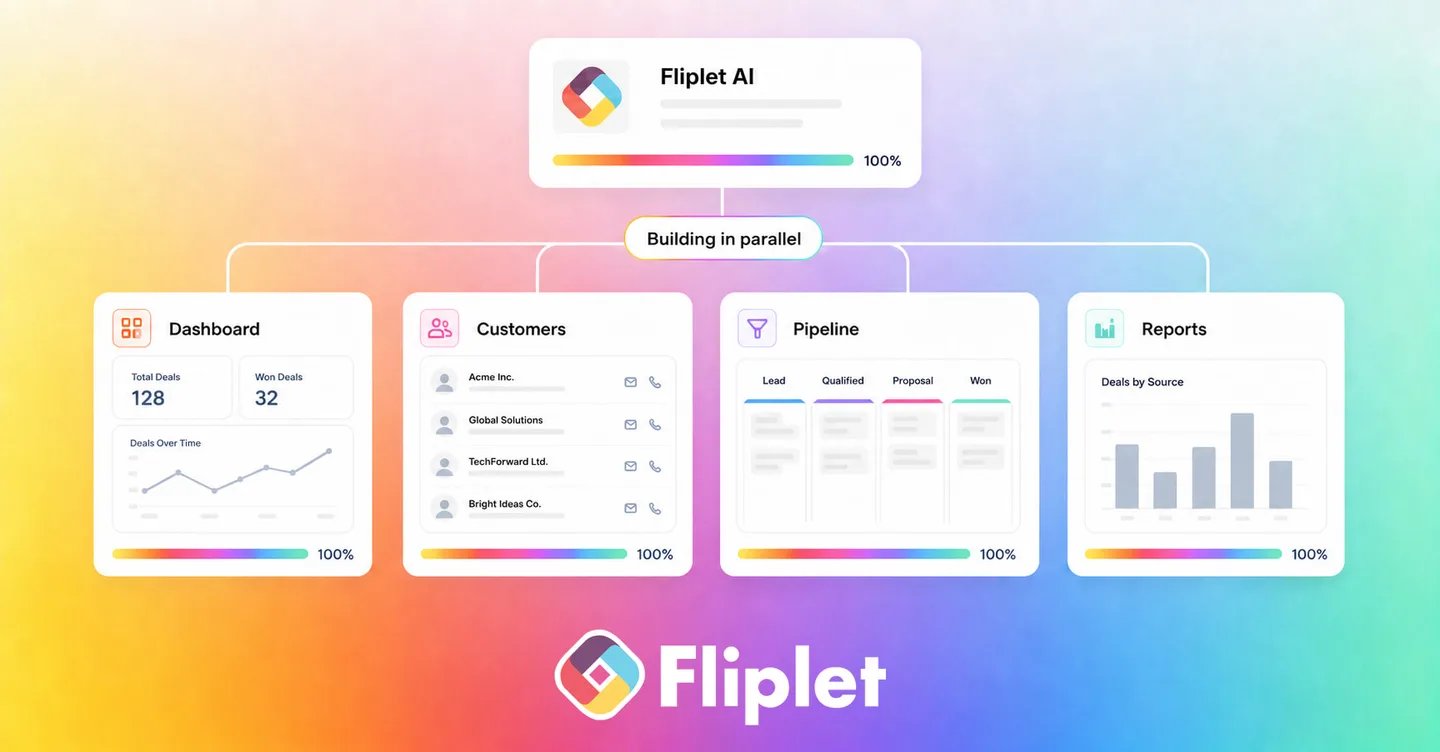
For multi-screen projects, the AI builder can use sub-agents to work on different screens at the same time. Each sub-agent works on one screen using the project’s shared data, design and structure. The builder assigns the work, brings the screens together and checks the finished software without extra setup.
Use voice dictation to describe what you want to build in the AI builder. Select the microphone in the builder chat or prompt box and record for up to five minutes. Your words appear as text that you can review and edit before sending.
See Fliplet in action
See how Fliplet can help your team build the software it needs.