








Almost there — let's save your idea

Create a free account to keep your app and pick up where you left off. 14 days free, no card required.

Legal client portal

Client portal software for law firms

Give clients a place to find documents, check matter updates and contact your team. Build it around your firm's services and access requirements.

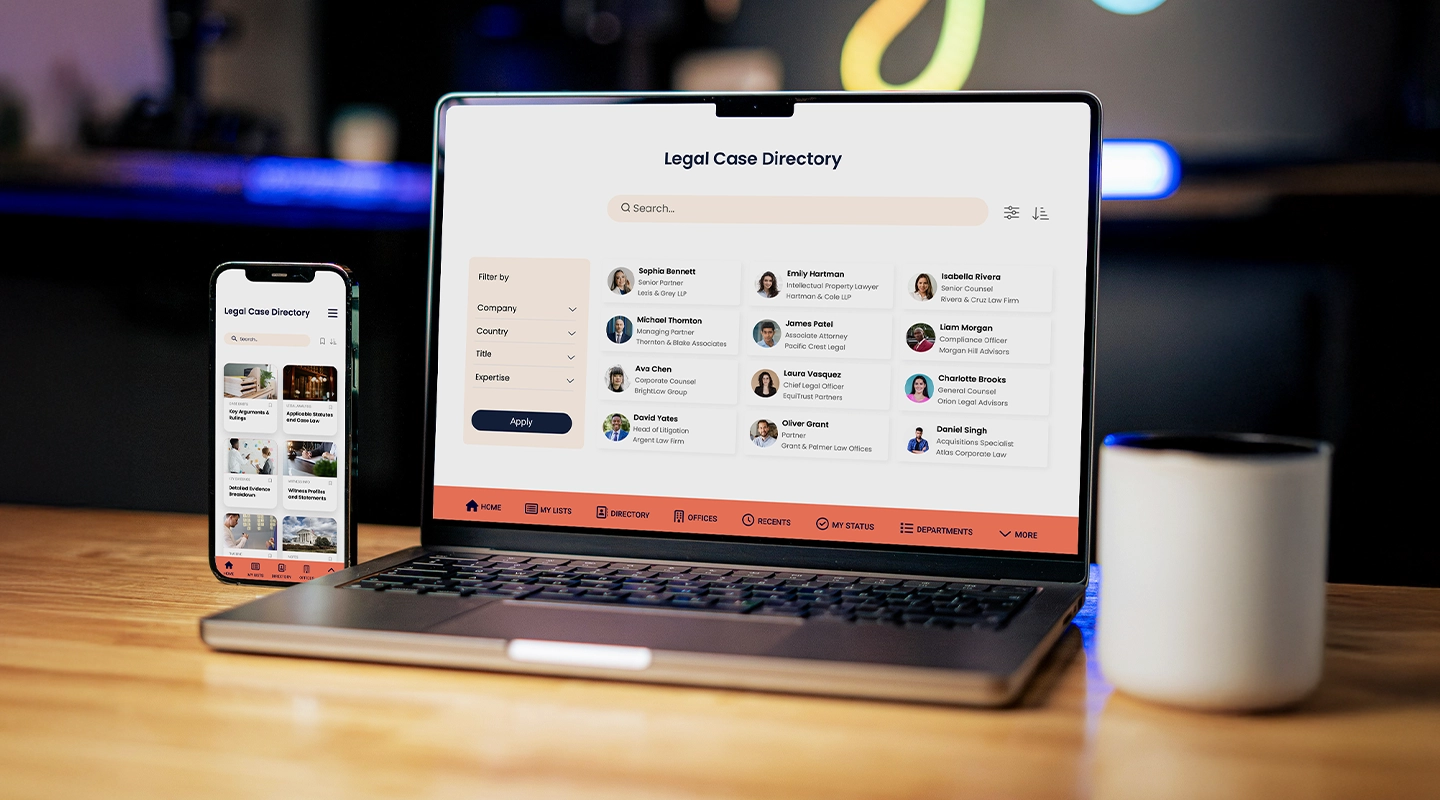
Illustrative legal directory on a laptop and phone
Legal directory illustration. Your portal's screens and permissions are configured for your firm.

Teams building with Fliplet

EY
Clifford Chance
Eversheds Sutherland
JTC Group
BCLP
Socotec
Mills & Reeve
Dykema

A shared client workspace

A legal client portal gives clients access to the documents, updates and contacts your firm chooses to share. Your team manages the information behind it. Fliplet lets you configure that experience around your services, with separate access for clients and staff and a layout that works on web and mobile.

Keep clients informed

Start with the moments when clients need information from your firm. These are examples of workflows you can configure, not a fixed package of legal software.

Welcome a new client

Give a new client access to your welcome information, relevant documents and team contacts. Your staff decide what to share and keep it current. The client has a place to return to when they need a document or want to find the right person.


Share a matter update

Publish an update with the next steps and supporting resources for the client. Decide who maintains that information and who can access it. If the source lives in another system, agree how the portal will receive updates before relying on it for client communication.

Connect with your team

Put the appropriate lawyer or service contact alongside the information a client is reading. Clients can find whom to ask, while your team maintains the contact details. Add a request form where it helps, with an agreed owner to review and follow up.

“We can set up pages and apps, which you can deploy anywhere within the space of minutes and hours.”

Gateley's team builds directories and event pages with Fliplet.

Joe Edwards

Senior Digital Manager, Gateley

Gateley

From brief to rollout

Define the client journey

Start with the documents, updates and requests clients need. Describe the workflow in a prompt, then review the generated screens with the people who will maintain them.

Configure data and access

Add your content, connect the required data sources and set permissions. Test client and staff access separately, including what each user must not be able to see.

Review, then launch

Have your firm review the content, security and client experience before rollout. Assign owners for updates and support, and adjust the portal as your services change.

Set access before launch

Confidential client information needs more than a login screen. Review your portal's access model, data sources and hosting requirements with your IT team.

  • Define which clients and staff can view or change each set of records. Configure data permissions as well as screen access.
  • Confirm the sign-in method for external clients. Review SSO requirements separately from your staff login.
  • Agree which system owns each document or update, and how information moves between that system and the portal.
  • Review hosting, retention and offboarding requirements with your firm's security team before inviting clients.

Client portal questions

What can clients do in a legal client portal?
Can we limit access by client or matter?

You can configure access around your users and data. Your implementation needs rules for which client or matter each person can access, including the underlying records. Test those rules with separate client and staff accounts before launch. Hiding a screen alone is not a substitute for protecting its data.

Is a legal client portal the same as a CRM?
Can Fliplet integrate with our existing systems?

Fliplet supports integrations, including API-based connections, but the work depends on the system and data involved. Bring your document, matter and CRM requirements to the demo. We can discuss the available connection options, permissions and setup needed rather than assume every connector is included.

Can we use our firm's branding?

Yes. You can adapt the portal's layout, colors and content to your firm. Choose the screens and navigation around the services your clients use. Review the experience on desktop and mobile, including sign-in, documents and contact details, before inviting clients.

Does the portal include billing and e-signatures?

Billing, payments and e-signatures need to be scoped for your project. If you need them, identify your current systems and the required workflow first. We can then discuss availability, licensing and integration work; these features are not included by default in every portal.

What should we bring to a demo?

Bring one client workflow, the information clients need to see and a list of the systems involved. Include your access requirements and who will maintain the content. Use sample data rather than confidential client files so the discussion can focus on the setup your firm needs.

Plan your client portal

Bring one client workflow. We'll discuss the screens, data connections and access controls your firm needs.